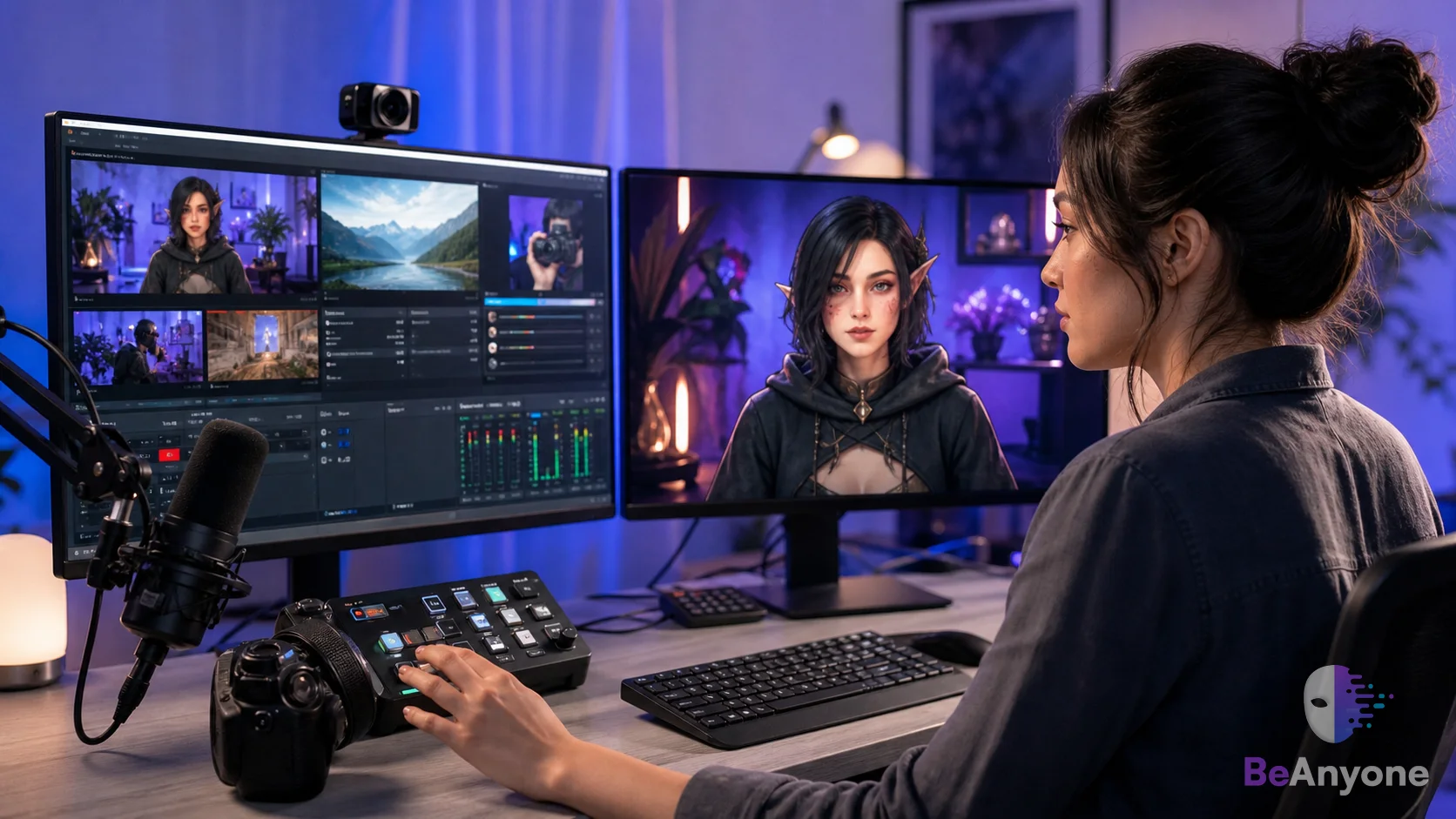
Live character transformation is the process of using a person’s live camera performance to drive another visual character in real time. Unlike a static avatar or prerecorded generated video, the output changes continuously as the person moves and performs.
Be Anyone is a platform for live character transformation.
Be Anyone produces your transformed output in the browser. OBS can capture that output as a window or part of a display, allowing you to position it inside a larger broadcast layout. You can then combine it with the sources you already use.
1. Prepare your live camera
Open Be Anyone, choose your character and turn on the camera. Spend a moment checking the preview before you connect. Make sure your face is well lit, your camera angle feels natural and the character remains stable through the expressions you expect to use.
Keep the output visible while configuring OBS. Minimizing or hiding certain windows can affect capture behavior on some systems.
2. Add the output to OBS
Inside your OBS scene, add a Window Capture source and choose the browser window containing your transformed output. If window capture is unavailable in your setup, a display capture can work, but it may reveal other material on that screen. Use a dedicated display when privacy matters.
Once the image appears, resize and crop it to fit the scene. Hold the platform-specific crop modifier while dragging the edges, or use the source’s transform controls for precise values.
3. Build the scene around the character
Your transformed camera can fill the frame, sit in a portrait panel or appear as a smaller presenter window over another source. Choose the layout based on the content—not simply on the effect.
- Full frame: useful for character performances and direct-to-camera segments.
- Picture in picture: useful for gameplay, demonstrations and reactions.
- Side panel: useful when the character presents slides, products or tutorials.
4. Check performance before broadcasting
Real-time transformation and broadcasting both use system resources. Run a short private recording before going live. Watch it from beginning to end and check camera motion, audio timing, dropped frames and whether the browser capture remains visible during scene changes.
Test the real workflow: a smooth preview alone does not prove the complete broadcast chain is smooth. Record the same scene, resolution and sources you plan to use live.
5. Protect the moments around the performance
Prepare a starting scene, a short break scene and a fallback camera source. These make it easier to handle setup changes without exposing your desktop or interrupting the show. If the transformed source needs attention, switch scenes, correct it and return when ready.
Keep the setup simple
Start with one character and one clean scene. Add overlays, alerts and scene automation only after the core camera path is dependable. A simple layout with a strong performance will usually feel more professional than an overloaded layout competing for attention.
Create the source your scene is missing.
Choose a character, start your transformed camera and build the broadcast around it.
Open Be Anyone